First you should familiarize yourself with macros as defined by WinVNKey.
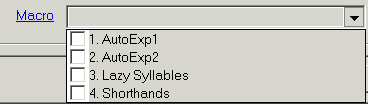
There are four types of macros accessible from the hyperlink "Macro" on the Main control panel.
The four types of macros are shown below, each in a separate tabbed page:
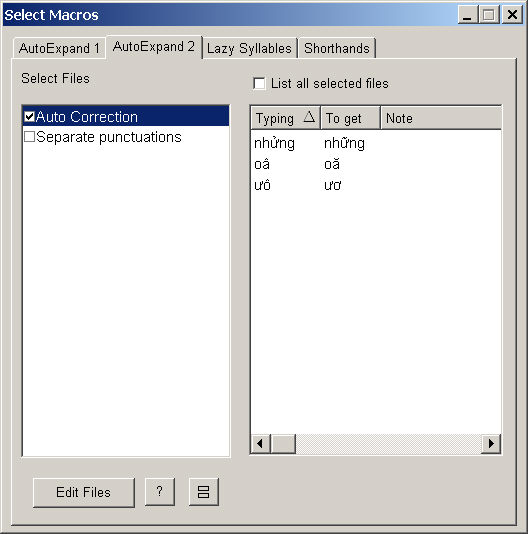
Auto expansion macros are those that expand unconditionally as long as the macro name matches with what you type in, regardless of where you are: at the beginning of a word, in the middle of a word, etc. Click here for details. There are two types: AutoExpand 1 and AutoExpand 2. They are functionally identical except for the order of execution: AutoExpand 1 is executed before AutoExpand 2.
Lazy Syllables are macros that expand only if the match occurs after consonants that begin a Vietnamese word.
Shorthand macros are those that expand only when the match is itself a stand-alone group of characters. That means
the macro name must begin a word or follow a white space or punctuation mark or symbol, and
the last character of the macro name must be followed by a white space or punctuation mark or symbol. (A white space is a space, tab, carriage return, or line feed.) Click here for details.
Each type of macro can contain an unlimited number of macros. These macros are placed in a number of files so that each file can be turned on and off individually. Macros are stored in Unicode text files with the .txt extension in the following subdirectories under <INSTALLDIR>\Macros.
AutoExp1 -- for AutoExpand 1 macros
AutoExp2 -- for AutoExpand 2 macros
Syllable -- for Lazy Syllable macros
Shorthand -- for Shorthand macros
The macro type of a file is determined by the containing directory. If you place a macro file, say mymacro.txt, into AutoExp1 directory, it is an AutoExpand 1 macro file. If you drop the same file into the Shorthand subdirectory, it becomes a shorthand macro file.
WinVNKey provides a few macro files as an example. You can add new macro files and/or modify or delete existing files.
Operations
All the macro pages have the same boxes and buttons as described below.
There are two list boxes: checkbox list on the left and contents box on the right.
The left box contains the base names of all macro files located in a specific macro subdirectory.
By default, each time you check a macro file in the left box, all macros defined in that file alone will be displayed in the list box to the right. If any character is not available in the character set currently in effect, the entire row will be displayed in red to signify that you cannot get them by any means. All other macros displayed in black are available immediately for use.
If you check the checkbox on top of the right hand side box, WinVNKey will display macros from all the files selected in the left box.
Help [?] Button
Click this button to see help or explanation for the macros defined on the page.
Display Toggle Button
The two list boxes can be displayed side by side or on top of each other. Click this button to change the display to best fit your viewing need.
Edit Files Button
If you already selected a file, clicking this button will display a dialog that allows you to edit the macros in this file. If you have not selected any file, the dialog displays an empty box with no filename.
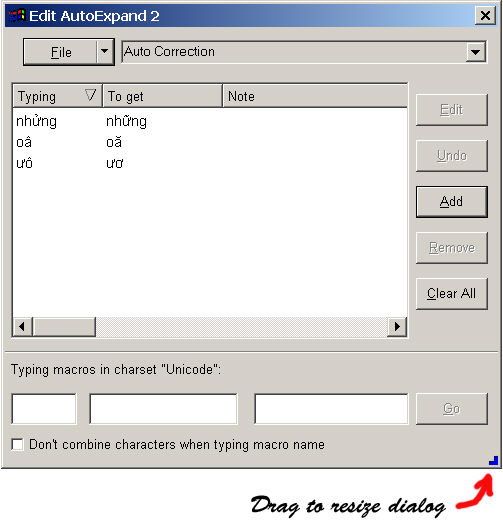
Once the dialog appears, you can resize it by dragging any edge. The dialog supports editing, adding, removing macros. You can also create a new macro file, rename or delete an existing macro file by clicking the downward arrow on the "File" button. See details on how to edit macros.